Invoice & cash memo generator

Fill in your shop, the customer and the items. The invoice updates as you type, shows the cash the courier should collect, and prints or saves as a PDF from your browser.

Free, no sign-up Runs on your device বাংলায় দেখুন

Your shop
Customer
Items
bKash, Nagad or bank
INVOICE
Deliver to
ItemQtyPriceTotal
Subtotal—
Delivery charge—
Discount—
Total—
Advance paid—
Due on delivery—

eCommerce Autopilot prints the invoice for every order — one or a hundred at once. Try it free for 7 days

How to use the Invoice & Cash Memo Generator

  1. Type your shop name, phone and address (saved on this device for next time).
  2. Add the customer's name, phone and delivery address.
  3. Add each item with quantity and price, then the delivery charge, discount and any advance paid.
  4. Press "Print or save PDF" and choose your printer or "Save as PDF".
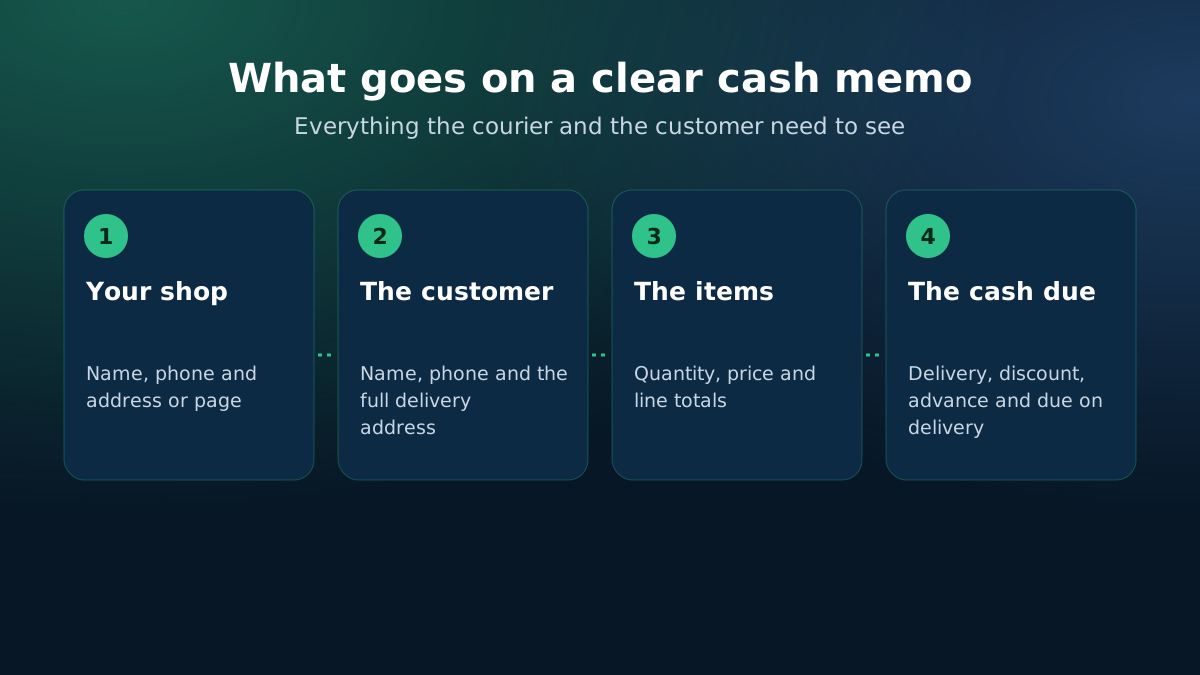
What goes on an online order invoice: shop, customer, items, delivery, advance and due
The parts of a clear cash memo.
Free invoice and cash memo generator in taka for online orders
Make a printable invoice in taka in a minute.

Why a proper invoice helps an online shop

A clear invoice in the parcel does more than look professional. It tells the delivery agent and the customer exactly how much cash to collect, lists what is inside so there are fewer disputes at the door, and gives the customer your phone number for the next order. For the shop, it is a record of what was sent and at what price.

What to put on a cash memo

  • Your shop name, phone number and address or page name.
  • An invoice number and date, so you can find the order later.
  • The customer's name, phone and full delivery address.
  • Each item with quantity, unit price and line total.
  • Delivery charge, discount, any advance paid, and the final due on delivery.
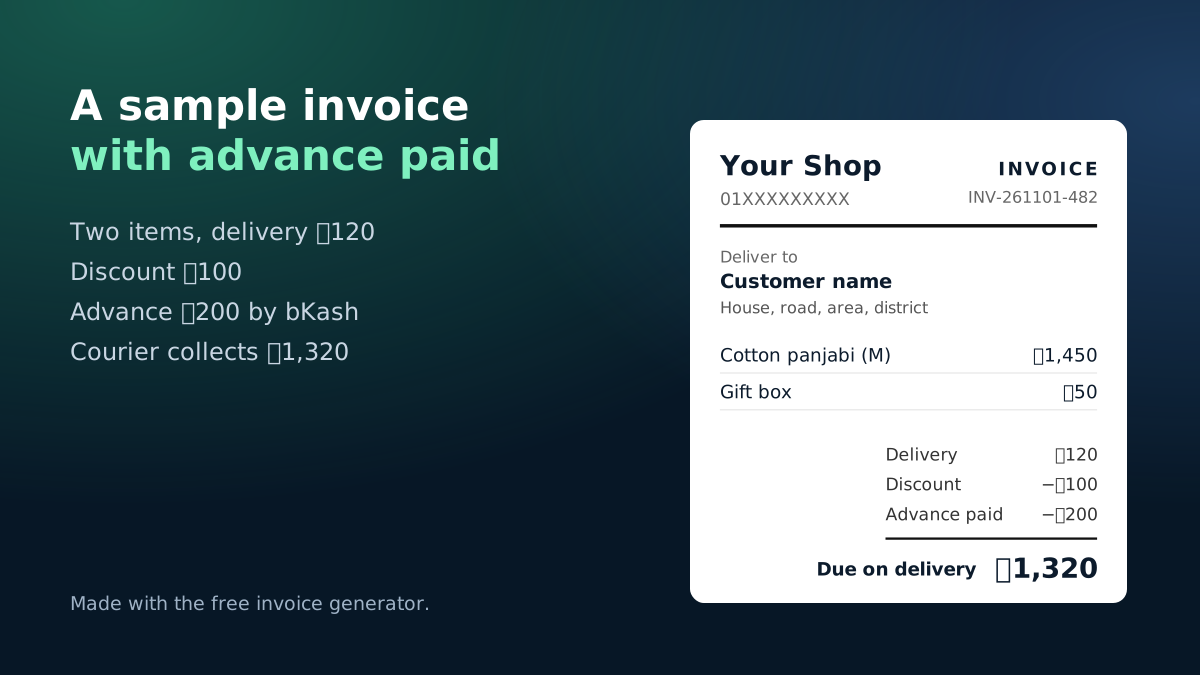
Example cash memo with items, delivery charge, advance payment and cash due on delivery
A sample invoice made with the generator.

Advance payments and COD

Many shops take a small advance by bKash or Nagad for costly or custom items, or for outside-Dhaka orders. Put that amount in "advance paid" and the invoice shows the remaining due — the amount to give the courier as the COD amount. Make sure the two match, or the courier will collect the wrong cash.

Printing tips

  • The page prints only the invoice, without the website around it.
  • Use A4 or A5 paper; most printers' "fit to page" works well.
  • Your shop details are kept on this device, so the next invoice starts with them filled in.

Invoice numbers that make sense

Use a simple pattern such as the date plus a running number. The generator suggests one for each invoice, and you can change it. Write the same number in your courier booking's invoice field, so you can match a parcel, its payment and its invoice later.

When orders grow, writing invoices by hand takes hours. eCommerce Autopilot creates an invoice for every website, inbox and phone order, prints one or a whole batch, and books the parcel with the courier from the same screen.

Frequently asked questions

Is this invoice maker free?

Yes, completely free with no sign-up. The invoice is made in your browser and nothing is sent to our server.

How do I save the invoice as a PDF?

Press "Print or save PDF", then choose "Save as PDF" (or "Microsoft Print to PDF") as the printer. On a phone, use the share or print option of your browser.

What is "due on delivery"?

It is the total minus any advance the customer already paid by bKash, Nagad or bank. This is the cash the courier should collect.

Can I make many invoices automatically?

This tool makes one invoice at a time. eCommerce Autopilot prints invoices for every order, one or many at once, with the order's items and the courier's tracking.

Learn more

Run your shop on autopilot Website, orders, courier, Facebook inbox, staff and accounts in one place. Free for 7 days.
Start free